
Care and recovery
How a MimOS stays healthy, and how it comes back when something goes wrong. Everything on this page was measured on real machines before being told to you.
Updating MimOS
When updates exist, MimOS tells you with a system-tray icon — no pop-ups, and nothing installs on its own. “Actualizar MimOS” opens a visible terminal and updates in an order that is not casual: official repositories first, then the AUR, then Flatpaks if any exist. That order is a safety property: each layer builds on the one before it.
The notifier never touches your system: it counts pending updates against a private copy of the databases and needs no administrator rights. Updating is always your decision.
Snapshots have your back
Every time you install, update or remove software, MimOS saves a snapshot first: an exact picture of how the system was one second before the change. The installation itself leaves the first one. The last twenty are kept and they take up very little, because they only store the differences.
Your personal files are not part of the snapshots, so recovering the system never touches your home folder.
If something goes wrong: Recuperar MimOS
A broken update, an experiment that should not have been one — if MimOS stops booting well, the way back needs only the keyboard, and it is timed on a real laptop: under two minutes from the boot menu to a healthy system.
- Turn the computer on and, in the boot menu, enter “Recuperar MimOS”.
- Pick the snapshot dated just before the problem and boot it.
- Log in and open a terminal (Meta+Enter).
- Type “mimos-restaurar” and confirm. After rebooting, the system is back to that picture.
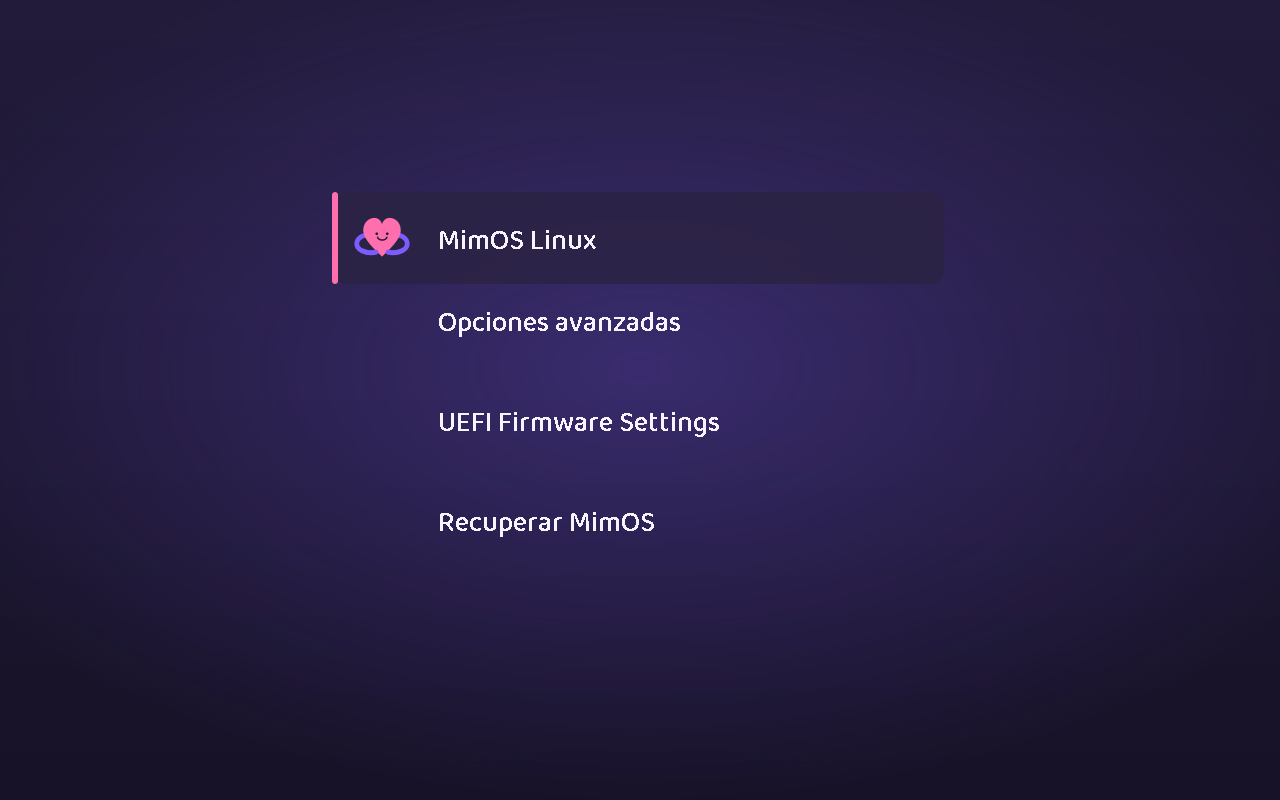
The broken system is not deleted: it is kept aside until you run “mimos-restaurar --limpiar”, in case you want to investigate what happened. And the system log survives the repair on purpose: the story of what broke does not vanish with the fix.
The support bundle
If you ask for help, system information is sometimes needed. “mimos-diagnostico” gathers it into text files you can read in full, and it anonymises before writing anything: IP and MAC addresses, e-mails, your user name and the computer's name are replaced with markers. That anonymisation cannot be turned off, and the tool has no network capability of any kind: sending the file — or not — is a decision you make, with the file in front of you.
In a terminal, “mimos-diagnostico --ayuda” shows the options and “mimos-diagnostico --solo-ver” prints everything to the screen without creating any file.
If you installed MimOS before 0.6
Until 0.6, every installed MimOS answered Ctrl+Alt+F2 with a root console that asked for no password. The Live image does that on purpose, but the setting lived in a file the installer copied to disk, so it reached every installation. Full-disk encryption does not protect you from this once the machine is running, and neither does locking the screen: it is a different terminal.
0.6 fixes it, but the fix runs during installation, so updating packages does not repair a machine you already have. Do it by hand, once:
sudo rm /etc/systemd/system/getty@tty1.service.d/autologin.confsudo systemctl daemon-reloadAfter that, Ctrl+Alt+F2 asks for a user name and a password as it should. A fresh installation from 0.6 needs no step at all.
Asking for help
The community lives on Discord. Tell us what happened and what you expected, and attach the support bundle if you have one.
Join the MimOS Discord